The keys you already know
⇧⌘3, ⇧⌘4 and ⇧⌘5 do what they always did, with more behind them: windows, scrolling pages, a self-timer, or just the text in an area.

Screenshots and screen recordings for the Mac, from the menu bar. Capture it, mark it up, hide what's private, and find it again by the words that were on it.
Download for Mac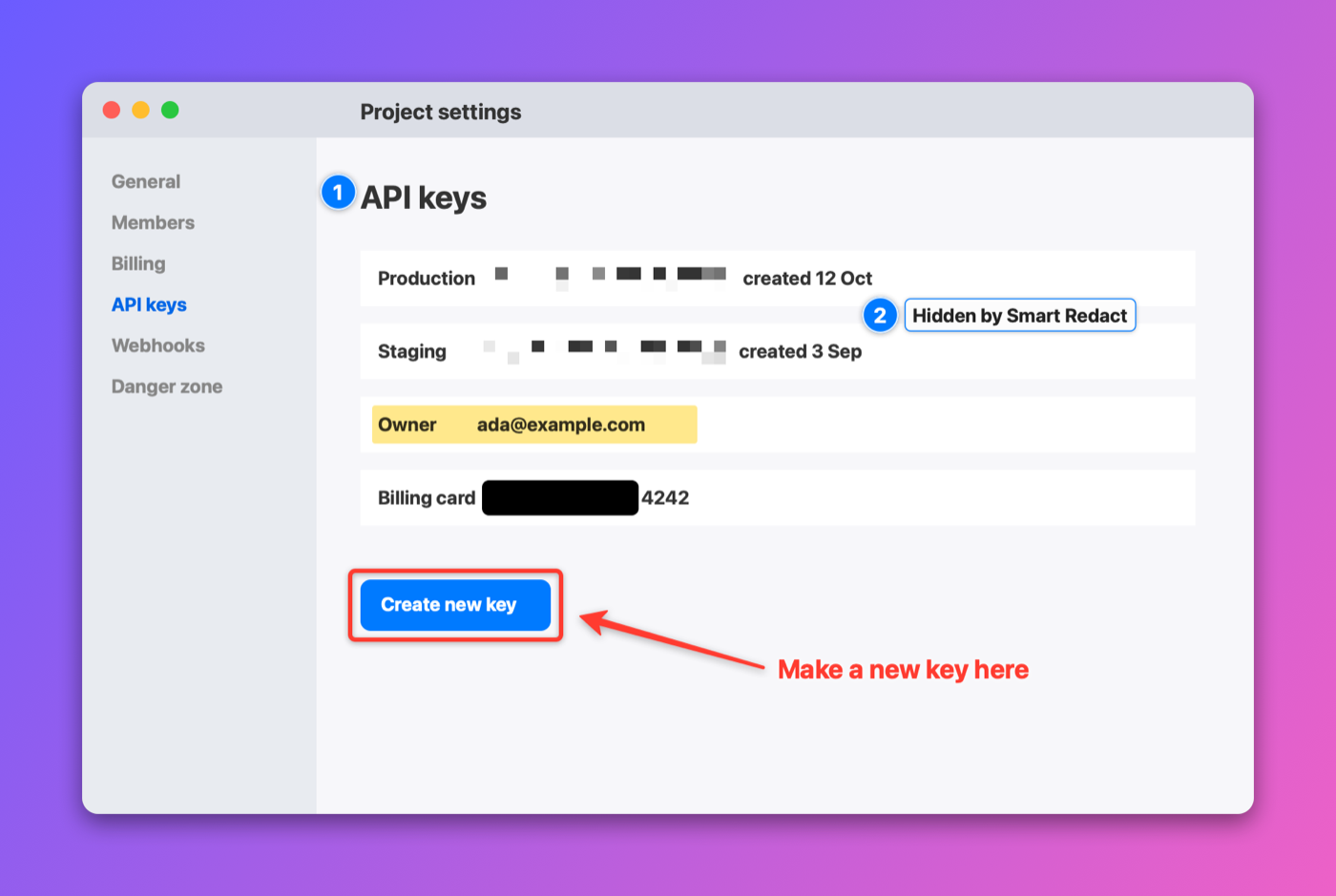
⇧⌘3, ⇧⌘4 and ⇧⌘5 do what they always did, with more behind them: windows, scrolling pages, a self-timer, or just the text in an area.
Arrows, numbered steps, text, highlighter, blur, pixelate and spotlight. History keeps the original, so you can move an arrow next week.
An area, a window or a display as a movie or a GIF, with the microphone, the Mac's sound, click rings and your camera as its own layer.
Reading text, naming files, search and Smart Redact all run on the Mac. One click covers emails, keys, card numbers and faces.
History keeps every capture. Search it for a word you remember seeing.
Gradient backdrops, rounded corners and shadows saved as presets, plus actions for Shortcuts, Spotlight, Siri and Raycast.